To work with the AutomatoGram program, you need to add an Instagram account to the program, under whose name you will work with the site.
To do this, you need:
1) In the upper right corner of the program, click "Add account"
Adding an Instagram account to the program. Screenshot 1
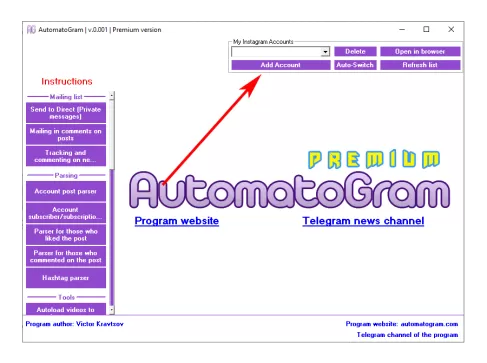 Adding an Instagram account to the program. Screenshot 1
2) In the window that opens, you need to indicate the login and password of the Instagram account you want to add to the program. You do not need to enter the login and password in these fields!
3) If you want to use a proxy when adding an account (Which is highly recommended), then you need to check the "Use proxy"
3.1) Enter your proxy details by filling in the appropriate fields:
IP - IP address of your proxy (For example: 123.456.78.90)
PORT - Numeric proxy port (e.g. 80, 3128, 8080, etc.)
LOGIN - your proxy login (for example, a combination of several letters and numbers)
PASS - Proxy password (For example, a combination of several letters and numbers)
Adding an Instagram account to the program. Screenshot 2
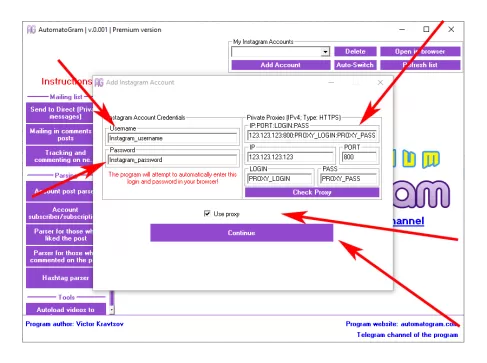 Adding an Instagram account to the program. Screenshot 2
4) Click "Continue"
5) After this, your built-in browser will open, in which the main page of the Instagram website will open!
6) If you specified the login and password for your Instagram account, the program will try to enter your credentials on the site itself.
7) If you did not enter your login information, or the program was unable to enter it on the website, in this case, You will need to enter your Instagram account login and password yourself.
8) After successfully entering your login and password, Instagram may ask you for an authenticator code.
9) After you successfully log into your Instagram account, the program will close the browser window and you will be able to see the added account in the program in the "My Instagram accounts" field.
10) After this, the account is considered added to the program and ready to work!